One desk. Every computer.
DeskAcross keeps your clipboard, files, keyboard and mouse moving between Windows and Mac. Copy here, paste there, over your own network.
DeskAcross runs on Windows and macOS. See the downloads
Copy and paste. Two computers, one desk.
Your networkSync runs over your LAN or your own cloud folder.
Your passphraseSynced data is encrypted with a passphrase you set.
No accountDownload and use the free plan without signing up.
Secrets stay putKeys and tokens are detected and can stay local.
What it does
Everything you copy, on every computer you use.
A clipboard manager on each machine, and a private link between them.
A clipboard with a memory
Text, HTML, RTF, images and files are saved as you copy. Pin what you reuse, favorite what matters, add notes, and sort clips into your own groups.
Learn moreFind it in a keystroke
Full-text search across your history, with filters by type and previews before you paste. Open it with a global shortcut, or take over Win+V on Windows.
Learn moreSync between Windows and Mac
Recent clips appear on your other computers over the local network, or through a folder in Dropbox, iCloud Drive or OneDrive.
Learn moreSend to My Devices
Push a file to your other computer straight from Explorer or Finder, then paste it where you need it.
Learn moreCareful with secrets
Keys and tokens are recognized. Skip them, redact them on screen, keep them out of sync, and exclude whole apps from capture.
Learn moreKeyboard and mouse sharing
In developmentSlide the pointer off one screen and onto the next computer.
Arrange your screens the way they sit on your desk. Wherever two edges touch, the pointer crosses, and your keyboard follows it.
- You choose the direction. Each device has separate switches for “I can control it” and “It can control me”.
- Screens drawn to scale. Displays are laid out in proportion to their physical size, so crossings land where you expect.
- Take control back instantly. Type on a computer's own keyboard and it is yours again.
This feature is labelled Experimental in the app and is still being built. It uses local network sync between computers you have confirmed.
Read the setup guide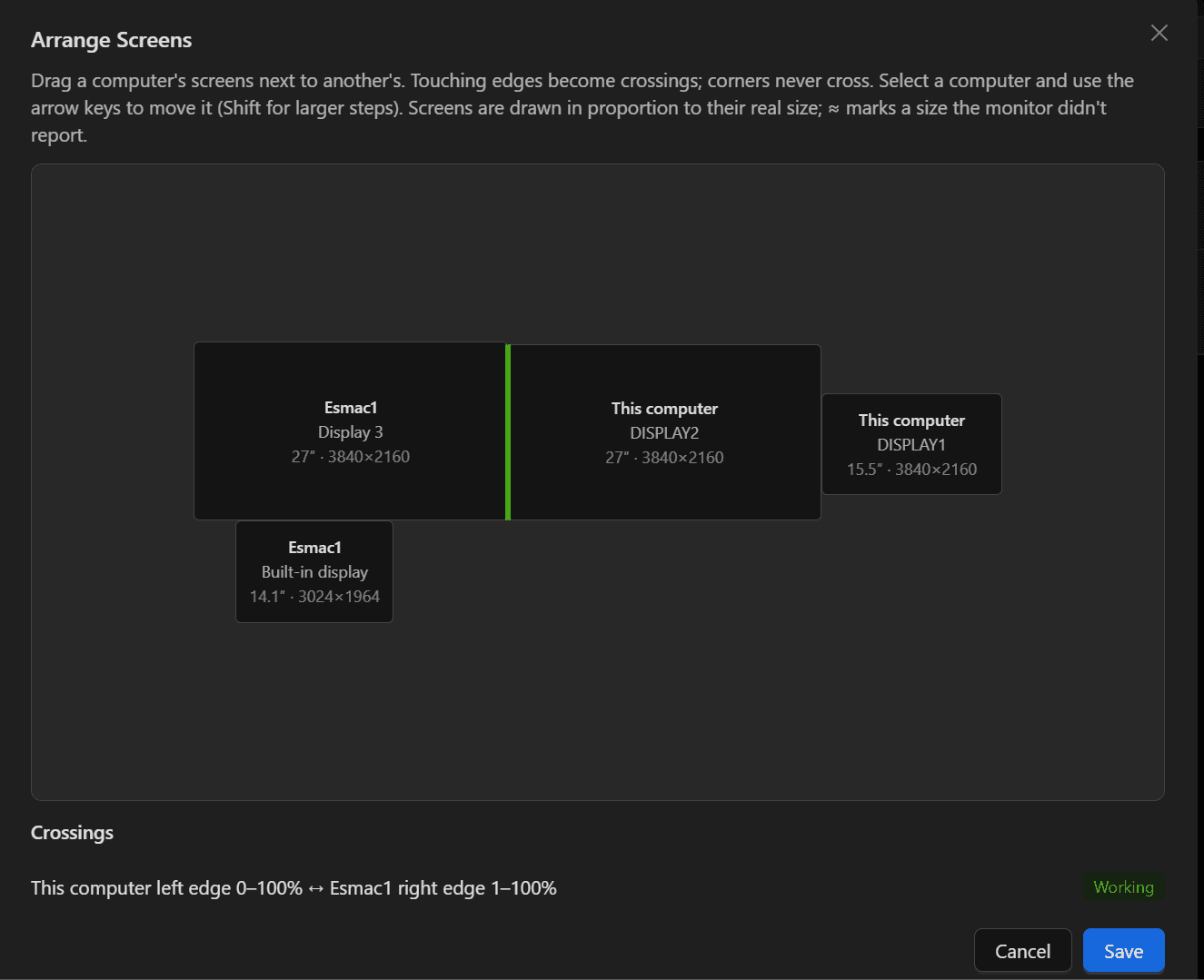
Setup
Connected in three steps.
No cables and no server to run. Your computers find each other on the local network.
- 01
Install on each computer
Download DeskAcross for Windows and macOS. Clipboard history starts working on its own right away.
- 02
Set one passphrase
Turn on Sync Between Devices and enter the same sync passphrase on every computer. It encrypts what you sync.
- 03
Copy here, paste there
Computers on the same network find each other automatically. Copy on one, and it is in history on the other.
Pricing
Free for one desk. Pro when it grows.
Start with the free app. Upgrade when you need more devices, bigger items or cloud folder sync.
Free
$0
No account needed
Full clipboard history on one computer, plus sync between two.
Download free- Clipboard history with search and previews
- Local network sync for 2 devices
- Send to My Devices, up to 25 MB
- Local backups
Pro
$29
Billing period announced at launch
For a desk with several computers and a lot moving between them.
Start with the free app- Sync 5 devices, 200 recent items, 50 MB each
- Cloud folder sync and encrypted backups
- Unlimited groups and Send to My Devices
- Keyboard and mouse sharing for 3 computers (in development)
Business
Custom
Volume pricing on request
Everything in Pro, with deployment and policy controls for teams.
Get a quote- Unlimited devices and computers
- Silent installation with Intune or Jamf
- Centralized sync and privacy policies
- Volume licensing and seat management
What does DeskAcross actually do?
Is keyboard and mouse sharing ready?
Where does my clipboard data go?
What do I get for free?
Does it replace Win+V on Windows?
Put every computer on the same desk.
Install DeskAcross on two computers and copy something. It takes a few minutes, and the free plan needs no account.