Manage Clipboard History
Set clipboard history limits, keep important clips, manage custom groups, and choose how the clipboard window opens.
Open History in DeskAcross settings to decide how long clips stay in history, organize them into groups, and control what you see when the clipboard window opens.
Set retention and cleanup rules
Open History → Retention & Cleanup.
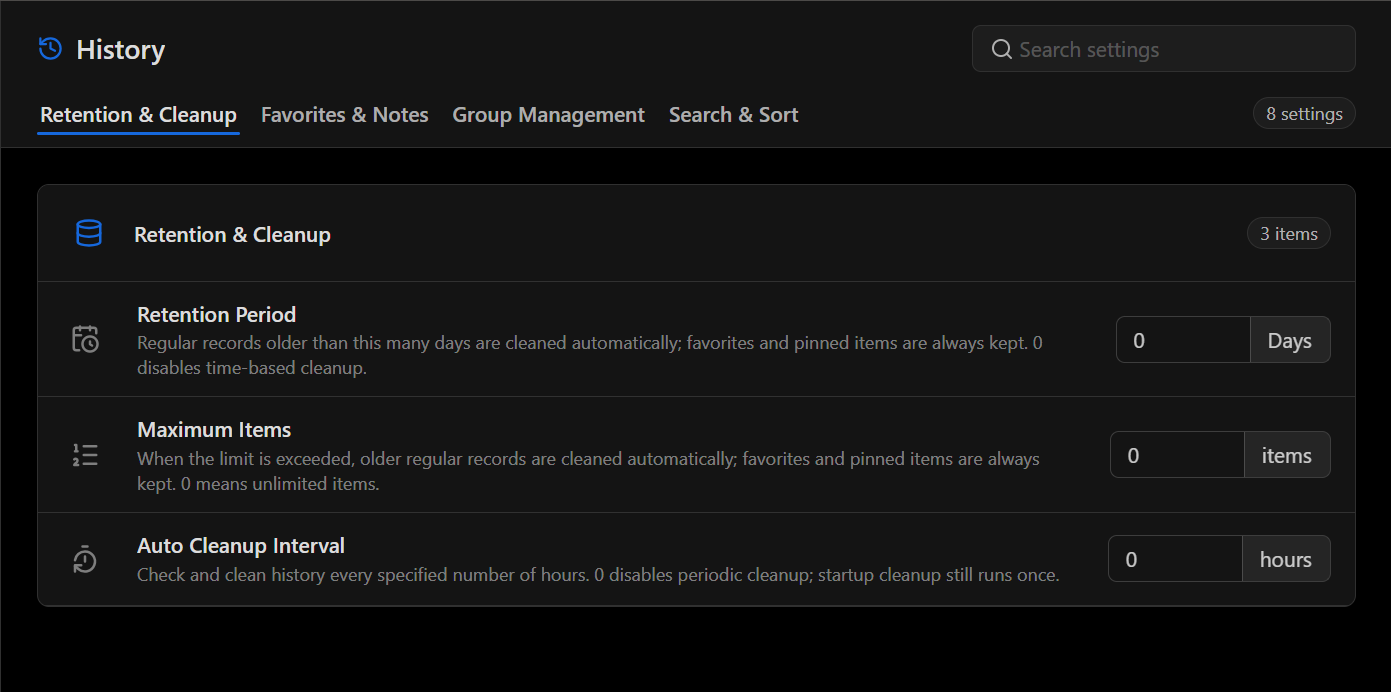
| Setting | What it controls | What 0 means |
|---|---|---|
| Retention Period | Removes regular history items older than the specified number of days. | Disables time-based cleanup. |
| Maximum Items | Removes older regular items when history exceeds the specified item limit. | Allows unlimited items. |
| Auto Cleanup Interval | Checks history against the cleanup rules at the specified interval in hours. | Disables periodic cleanup. The startup cleanup check still runs once. |
Favorites and pinned items are kept when automatic cleanup removes older regular items.
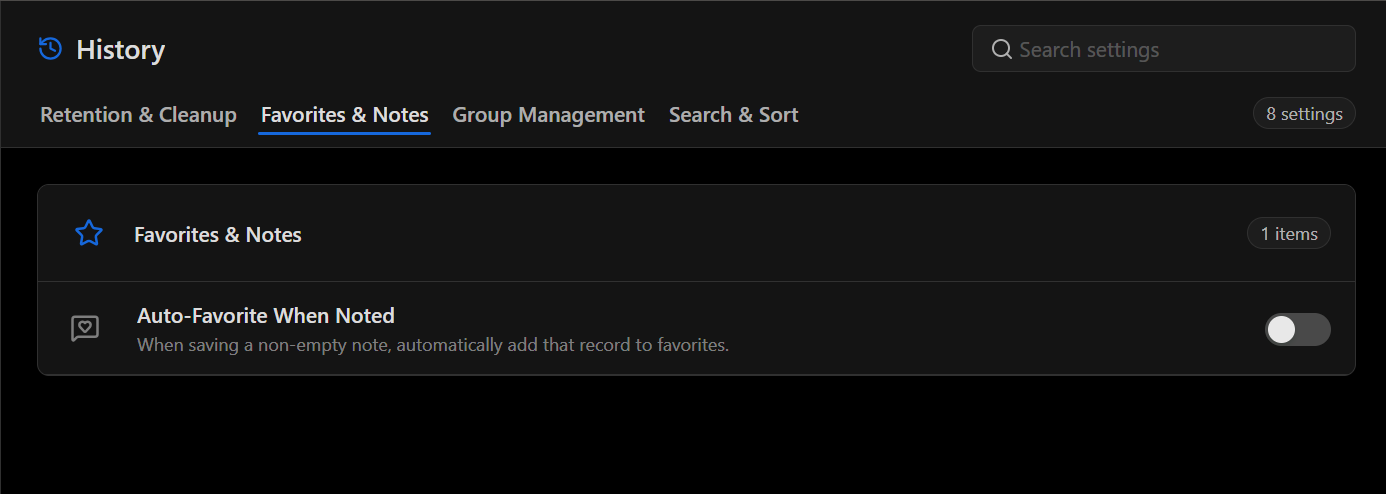
Automatically favorite clips with notes
Open History → Favorites & Notes and turn on Auto-Favorite When Noted. When you save a non-empty note, DeskAcross adds that clip to Favorites. This keeps clips you annotate eligible for the same cleanup protection as other favorites.
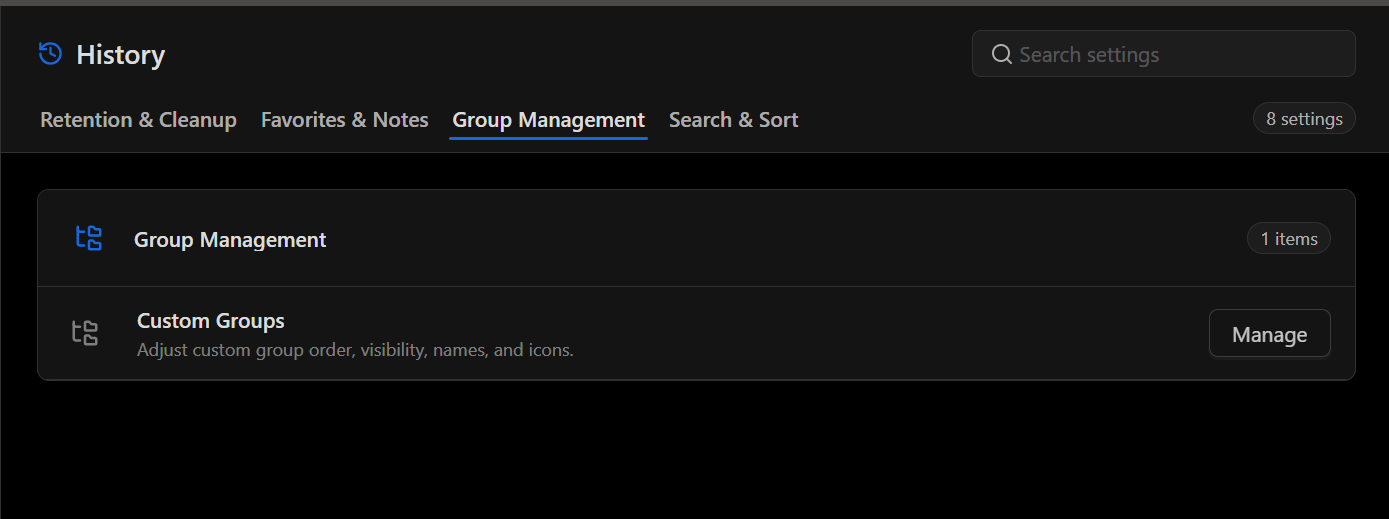
Manage custom groups
Open History → Group Management. Select Manage next to Custom Groups to change group order, visibility, names, or icons.
Set search and sort behavior
Open History → Search & Sort.
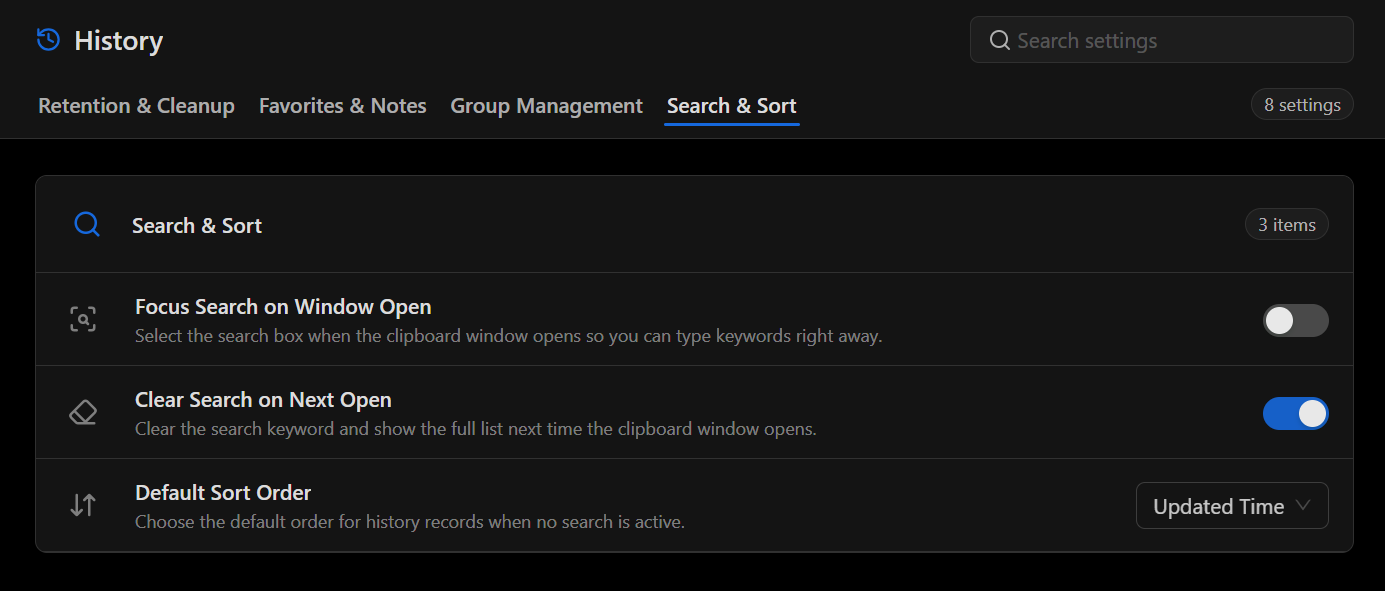
- Focus Search on Window Open puts the cursor in the search box when the clipboard window opens so you can start typing immediately.
- Clear Search on Next Open clears the previous search when you reopen the clipboard window and shows the full history list.
- Default Sort Order sets the order of history items when no search is active. The screenshot shows Updated Time selected.
Related article
Configure Clipboard Capture explains which formats and apps contribute items to your history.
Did this article help?