Configure Clipboard Actions
Customize how you copy, paste, and delete clipboard history items in DeskAcross.
Open Actions in DeskAcross settings to change what happens when you reuse a clipboard history item and which actions appear on it.
Choose how to paste from history
Open Actions → Paste Behavior.
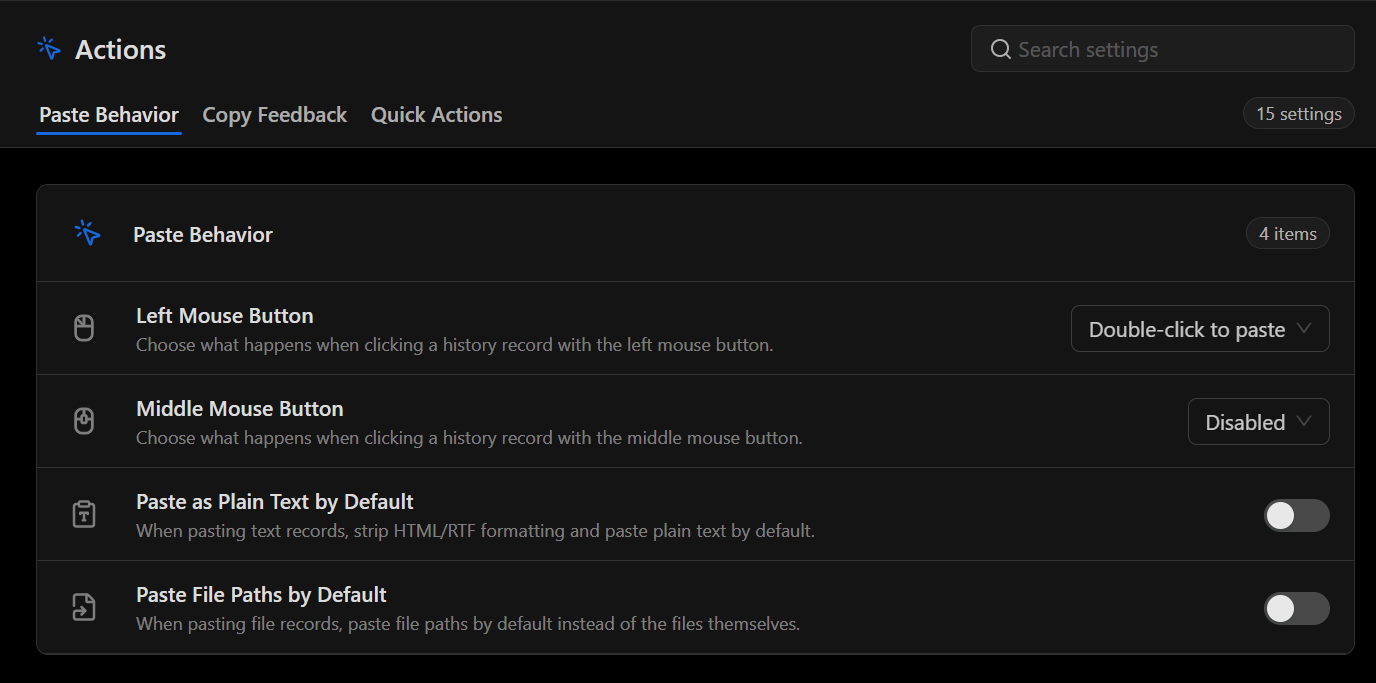
| Setting | What it controls |
|---|---|
| Left Mouse Button | Choose what happens when you click a history item with the left mouse button. Select Double-click to paste if you want a double-click to paste the item. |
| Middle Mouse Button | Choose what happens when you click a history item with the middle mouse button. Select Disabled to turn off that action. |
| Paste as Plain Text by Default | Strips HTML and RTF formatting when you paste text from history. |
| Paste File Paths by Default | Pastes paths for file items in place of the files themselves. |
Change copy behavior and feedback
Open Actions → Copy Feedback.
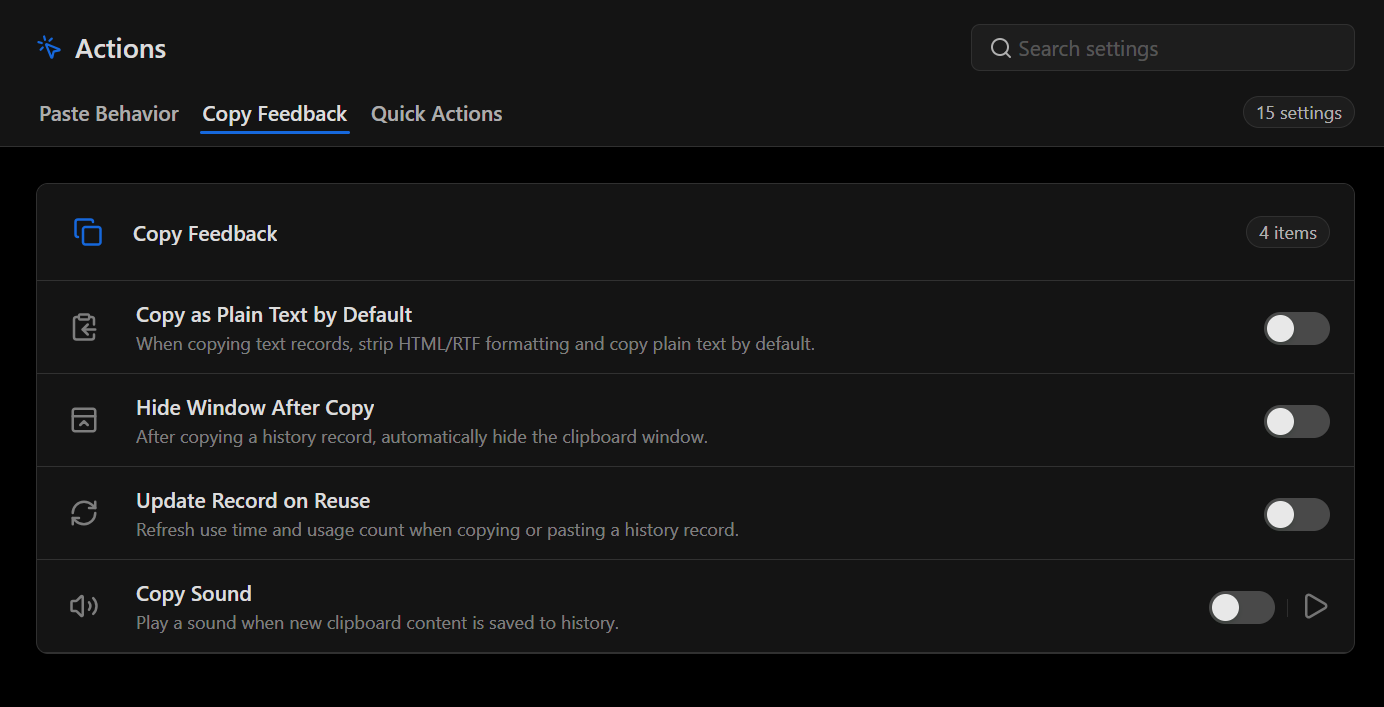
| Setting | What it controls |
|---|---|
| Copy as Plain Text by Default | Strips HTML and RTF formatting when you copy a text item from history back to the clipboard. |
| Hide Window After Copy | Hides the clipboard window after you copy an item from history. |
| Update Record on Reuse | Refreshes the last-used time and usage count when you copy or paste a history item. |
| Copy Sound | Plays a sound when new clipboard content is saved to history. |
If you want to remove formatting only when pasting directly from history, turn on Paste as Plain Text by Default in Paste Behavior.
Choose quick actions and delete protections
Open Actions → Quick Actions. Select Manage next to Visible Quick Actions to choose which buttons appear when you hover over a history item.
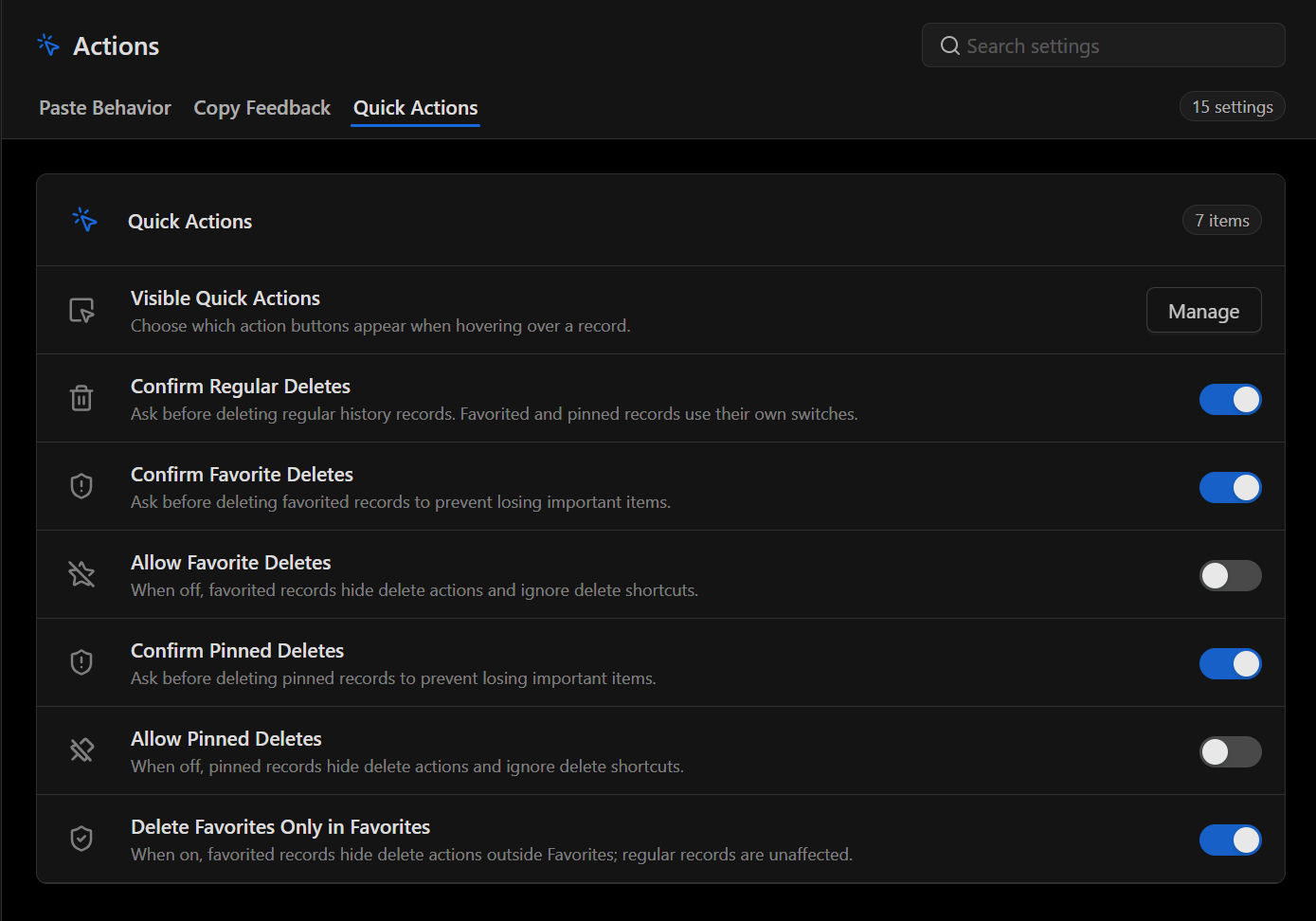
| Setting | What it controls |
|---|---|
| Confirm Regular Deletes | Asks before deleting a regular history item. Favorites and pinned items have their own confirmation settings. |
| Confirm Favorite Deletes | Asks before deleting a favorite when deletion is allowed. |
| Allow Favorite Deletes | Turn this off to hide delete actions and ignore delete shortcuts for favorites. |
| Confirm Pinned Deletes | Asks before deleting a pinned item when deletion is allowed. |
| Allow Pinned Deletes | Turn this off to hide delete actions and ignore delete shortcuts for pinned items. |
| Delete Favorites Only in Favorites | When enabled, hides delete actions for favorites outside the Favorites view. Regular items are unaffected. |
If a delete button is missing, check whether the item is a favorite or pinned and review its Allow setting. For favorites, also check whether you're in the Favorites view.
For automatic cleanup and retention rules, see Manage Clipboard History.
Did this article help?