Share a Keyboard and Mouse
Allow keyboard and mouse control between confirmed computers and choose where the pointer crosses between screens.
DeskAcross uses local network sync to share keyboard and mouse control. Enable local network sync and confirm the computers you want to use. The app labels this feature Experimental.
Enable sharing and set device permissions
- In DeskAcross settings, open Keyboard & Mouse → Keyboard & Mouse Sharing.
- Turn on Share Keyboard and Mouse.
- Under Devices, find the confirmed computer and enable the direction of control you want.
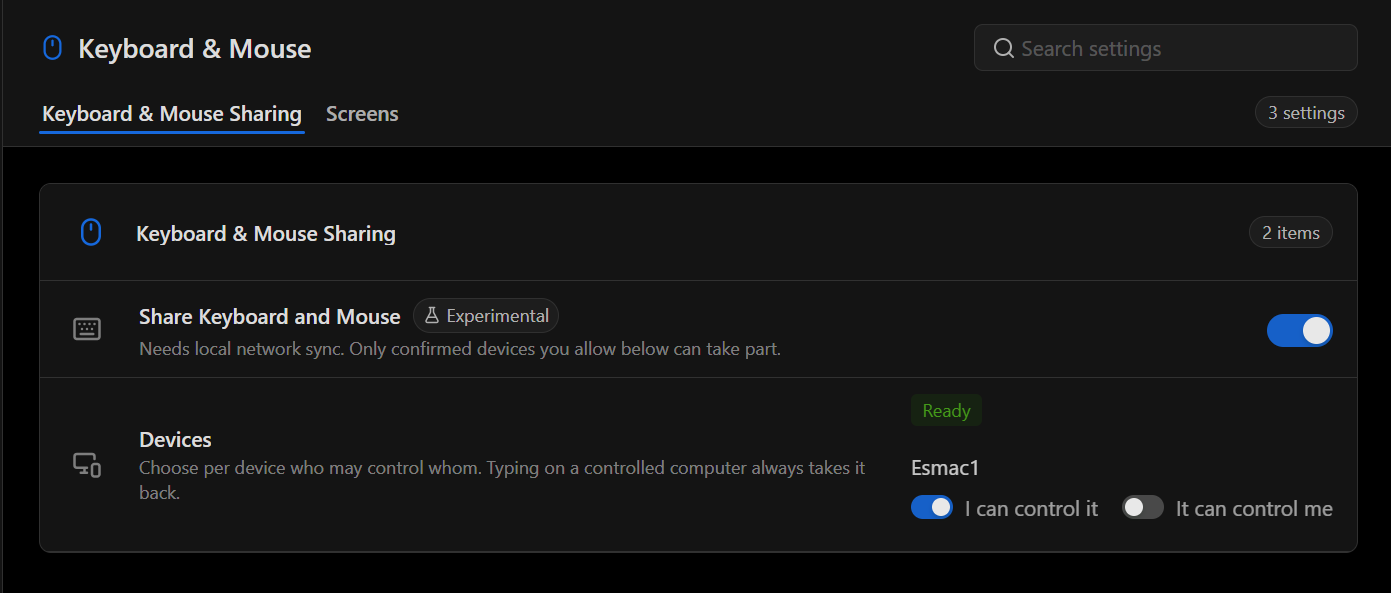
| Setting | What it allows |
|---|---|
| I can control it | This computer can use its keyboard and mouse to control the listed computer. |
| It can control me | The listed computer can use its keyboard and mouse to control this computer. |
For example, to use this computer's keyboard and mouse on a second computer, turn on I can control it for that device. To take back control of a computer, type on its own keyboard.
Arrange screens and choose where the pointer crosses
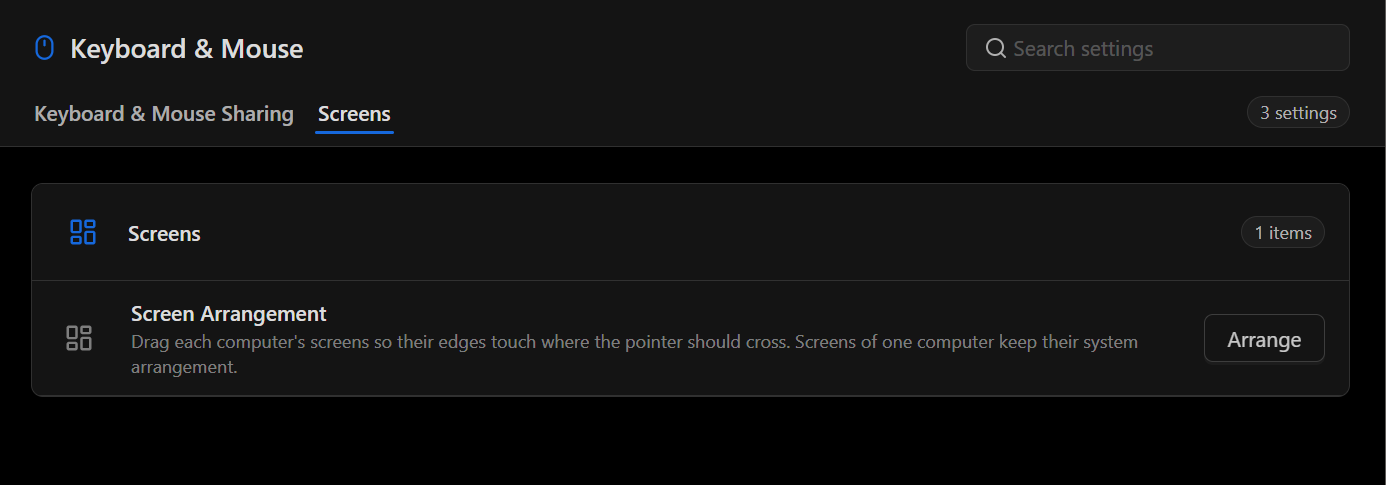
- Open Keyboard & Mouse → Screens and select Arrange next to Screen Arrangement.
- In Arrange Screens, drag one computer's group of screens next to the other. Align the edges where you want the pointer to cross. Two screens must share part of an edge to create a crossing. A corner alone does not create one.
- Check Crossings below the layout. The list shows the edge and range on each computer. In the example, a green line marks the crossing between the two external displays, and the list shows Working.
- Select Save, then move your pointer across the shared edge to test it.
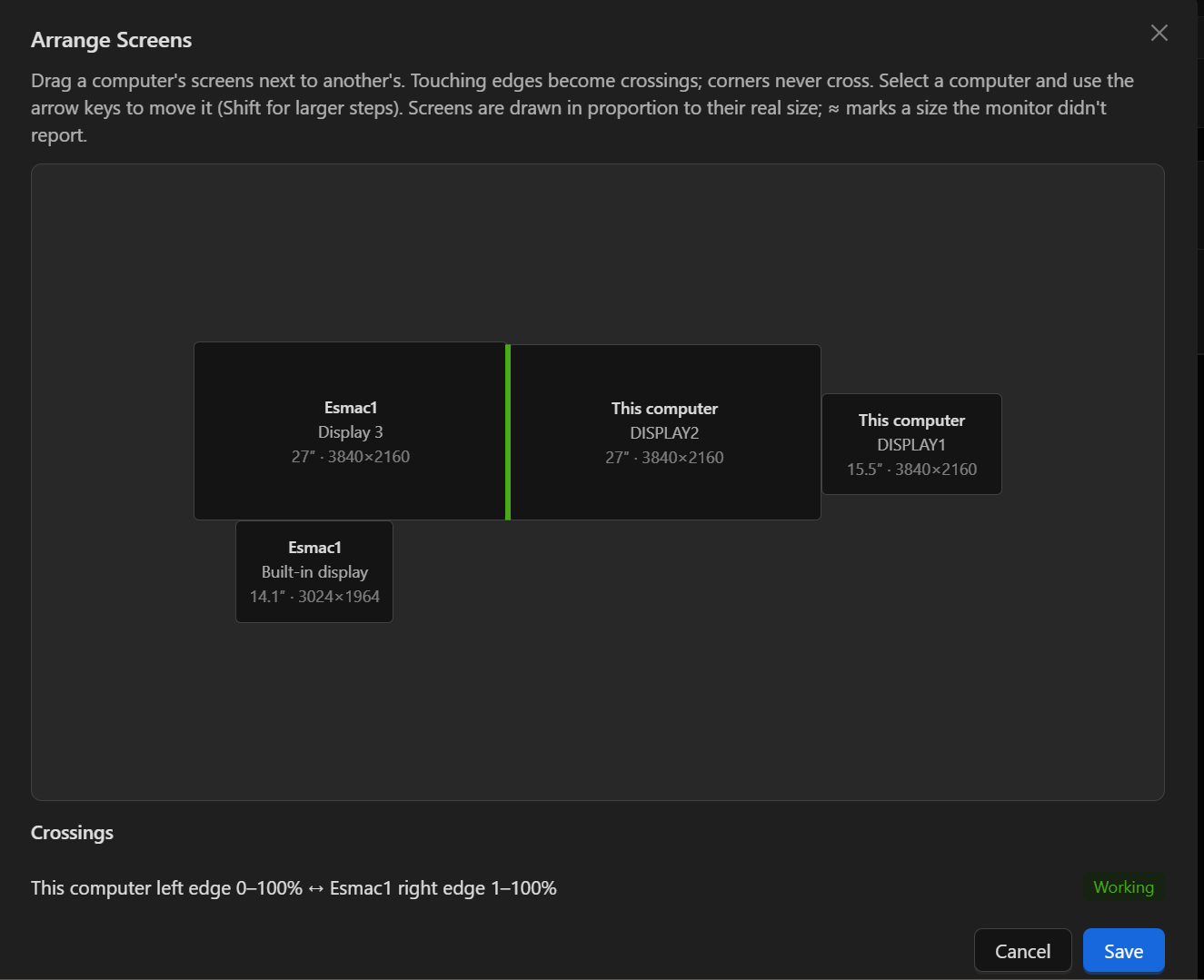
Screens attached to the same computer keep their operating system arrangement. To fine-tune a group's position, select the computer and use the arrow keys. Hold Shift for larger steps. Screens are drawn in proportion to their physical size. The ≈ symbol marks a size the monitor did not report.
If the pointer does not cross
- Check that local network sync and Share Keyboard and Mouse are enabled.
- Confirm the other computer appears under Devices and the intended control direction is allowed.
- Open Arrange Screens and check that the two computers share an edge along the part of the screen you are using. Review Crossings and save the layout after making changes.
Did this article help?